> For the complete documentation index, see [llms.txt](https://help.pdfreportgenerator.com/llms.txt). Markdown versions of documentation pages are available by appending `.md` to page URLs; this page is available as [Markdown](https://help.pdfreportgenerator.com/create-template/placeholder-directory.md).
# Placeholder Directory
Here's a list of the most common placeholders for PDF Report Generator. There are more placeholders for special use cases. If you miss a feature, please contact us and we're happy to help.
### Placeholder for docx template
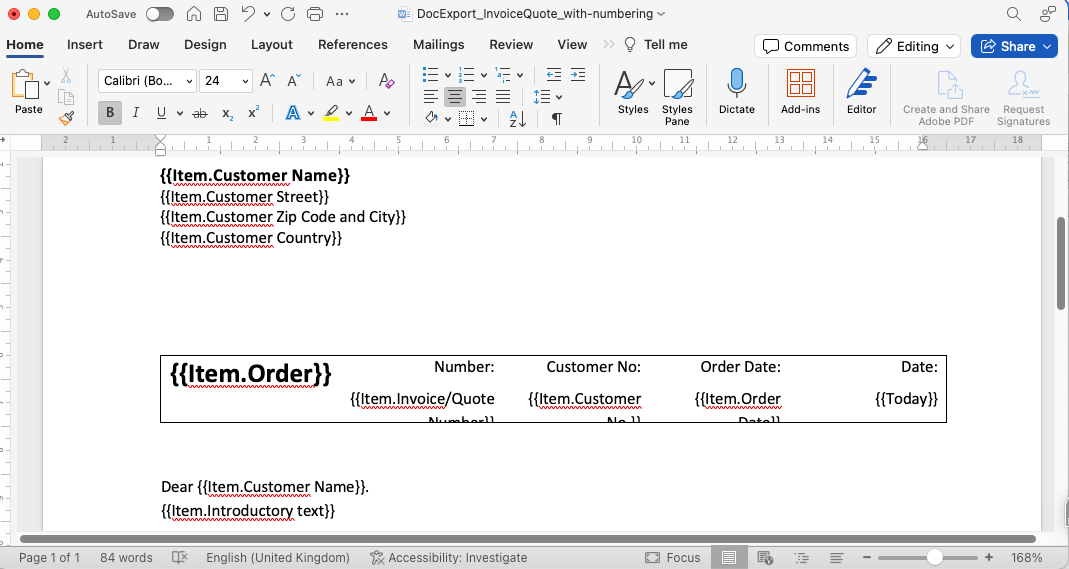
Use placeholders from this list to create a Microsoft Word (docx) template from scratch or use one of our [free templates](https://www.pdfreportgenerator.com/template-gallery/) as a starting point.
You can also use your existing business documents and replace your static text with placeholders:
### General placeholders
These are general placeholders you can use in your docx templates.
* **`{{Item.ColumnTitle}}`** -> General placeholder format for item-level reports. Replace 'ColumnTitle' with the actual title of your board column
* **`{{Item.Name}}`** -> Item name or first column of your board
* **`{{Today}}`** -> Date of document creation (e.g. 24/12/2024)
* **`{{Board.Name}}`** -> Name of your monday board
* `{{Board.Description}}` -> Description of your monday board
* **`{{Item.GroupName}}`** -> Name of the group of the item (e.g. New Tasks)
* **`{{User.Name}}`** -> Name of monday user
* `{{User.Email}}` -> Email address of monday user
### Timeline column placeholders
Replace 'Timeline' with the actual title of your timeline column. If your column title is 'Actual Planned', the placeholder would be `{{Item.Actual Planned}}`
* **`{{Item.Timeline}}`** -> Start and End Date (e.g. 24/12/2024 - 31/12/2024)
* **`{{Item.Timeline#Start}}`** -> Only the start date from a timeline column (e.g. 24/12/2024)
* **`{{Item.Timeline#End}}`** -> Only the end date from a timeline column (e.g. 31/12/2024)
### Date column placeholders
Replace 'Date' with the actual title of your date column. If your column title is 'Due Date', the placeholder would be `{{Item.Due Date}}`
* **`{{Item.Date}}`** -> Date + time from your date column with standard formatting (e.g. 24/12/2024 09:30) If no time is selected, only the date will be shown
* **`{{Item.Date#Time}}`** -> Only the time if time is selected in the date column
* **`{{Item.Date#Date}}`** -> Only the date of the date column (e.g. 24/12/2014)
### Date formatting
You can easily change the format of your dates.
* **`{{Item.Date | dd.MM.yyyy}}`** -> 24.12.2024
* **`{{Item.Date | yyyy-MM-dd}}`** -> 2024-12-24
* **`{{Item.Date | D}}`** -> Tuesday, December 24, 2024
* [Learn more](https://www.pdfreportgenerator.com/help/template/date-time/) about date formatting
### Status column placeholders
Replace 'Status' with the actual title of your status column. If your column title is 'Project Phase', the placeholder would be `{{Item.Project Phase}}`
* **`{{Item.Status}}`** -> Label of your status column (e.g. Done or Stuck)
* **`{{Item.Status | WithColor}}`** -> Label with background highlight (e.g. Done or Stuck)
### Location column placeholders
Replace 'Location' with the actual title of your location column. If your column title is 'Address', the placeholder would be `{{Item.Address}}`
* **`{{Item.Location}}`** -> Full name and address
* **`{{Item.Location#Address}}`** -> Only address
* **`{{Item.Location#Country}}`** -> The country from location column (e.g. United Kingdom)
* **`{{Item.Location#CountryShort}}`** -> The country code from location column (e.g. GB)
* **`{{Item.Location#City}}`** -> The city from location column (e.g. London)
### People column placeholders
Replace 'People' with the actual title of your people column. If your column title is 'Task Owner', the placeholder would be `{{Item.Task Owner}}`
* **`{{Item.People}}`** -> Full name of monday user in the people column
* **`{{Item.People#Emails}}`** -> Email addresses of assigned people
* **`{{Item.People#PhoneNumbers}}`** -> Phone numbers of assigned people
* **`{{Item.People#Count}}`** -> Number of assigned people in people column
### Link column placeholders
Replace 'Link' with the actual title of your link column. If your column title is 'Website', the placeholder would be `{{Item.Website}}`
* **`{{Item.Link}}`** -> Url as text format (e.g. https//[www.docexport.com](http://www.docexport.com))
* **`{{Item.Link#Text}}`** -> Custom text from your link column (e.g. Link to Website)
* **`{{Hyperlink:Link}}`** -> Custom text from your link column and it's clickable in the document (e.g. [Link to Website](https://monday.com/marketplace/10000360))
### Formula and mirror column placeholders
Replace 'Formula' with the actual title of your formula column. If your column title is 'Total Hours', the placeholder would be `{{Item.Total Hours}}`
* **`{{Item.Formula}}`** -> Content from your formula column
* **`{{Item.Mirror}}`** -> Content from your mirror column. Make sure to replace 'Mirror' with the title of your column
### Special Subitem Placeholders
Replace 'Column Title' with the actual title of your subitem column. If your column title is 'Payment Amount', the placeholder would be `{{LastSubitem.Payment Amount}}`\
Note: This only works with Item-Level documents if you want to add information from one specific subitem to your Item-Level documents.\
If you want to add a table of all related subitems, follow these instructions: [Subitem Table](https://www.pdfreportgenerator.com/help/template/subitem-table/)
* **`{{FirstSubitem.Column Title}}`** -> Content from your first subitem (the top one)
* **`{{LastSubitem.Column Title}}`** -> Content from last subitem (e.g. `{{LastSubitem.Name}}` gives you the name of the last subitem)
## "Entire Board" documents
The following section is specifically for board-level documents like reports.
### Column summary
Replace 'ColumnTitle' with the actual title of your column. If your column title is 'Total Hours', the placeholder would be `{{Sum[Total Hours]}}`
* **`{{Sum[ColumnTitle]}}`** -> Sum of a group for a specific column (e.g. 123 hours)
* **`{{Board.Sum[ColumnTitle]}}`** -> Sum of the board for a specific column
* **`{{Image:Sum[Status]}}`** -> Summary image of status column (default 80px width)\
(e.g. )
* **`{{Image(50;0):Sum[Status]}}`** -> Summary image of status column with width of 50px\
(e.g. )